Open a live view
in your browser.
Give a spare Android phone a new job. View a workbench, a project or another camera angle from a compatible browser on the same Wi-Fi.
Set up an Android IP camera No desktop companion neededAVAILABLE ON GOOGLE PLAY
An Android IP camera. A wireless Windows webcam. A live view of your desk. Camlora brings your phone’s camera to the screen where you need it.
Android 7+ · Windows 10/11 x64 · Free to start
Compare downloads and requirements
WHAT WOULD YOU LIKE TO DO?
Choose your view. Each guide takes you from the phone in your hand to a working connection.
Give a spare Android phone a new job. View a workbench, a project or another camera angle from a compatible browser on the same Wi-Fi.
Set up an Android IP camera No desktop companion neededChoose your front or rear camera, position it at eye level, then select Camlora in a compatible Windows meeting or recording app.
Use a wireless Windows webcam Windows 10/11 x64 companionShare handwriting, drawing, craft work or a demonstration. A stable overhead mount turns your phone into a live document camera.
Build your overhead camera setup Use a browser or Windows appA CAMERA WITH A LOCAL ADDRESS
Camlora serves a live MJPEG camera stream and JPEG snapshots from your Android phone. Open the phone’s local address in a compatible browser, or connect the Windows companion for a virtual webcam.
Adjust camera, rotation, resolution, quality and frame rate for your device and connection. Browser viewing works without a Camlora account.
How browser camera viewing works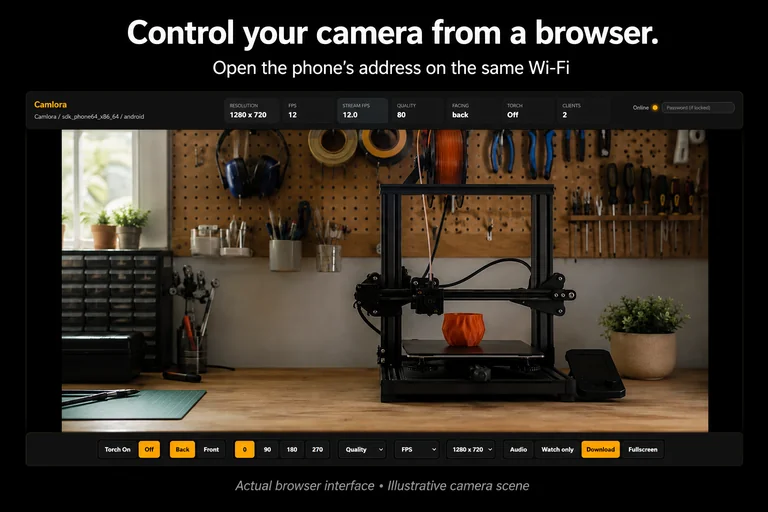
FROM INSTALL TO FIRST PICTURE
Your phone and viewing device need to be on the same trusted local network.
Read the complete setup guideInstall Camlora from Google Play. Allow camera access and start streaming. Microphone access is optional.
Open the displayed address in a browser, or connect the Windows companion using the phone’s IP and port.
Position the phone securely. For calls, start the Windows virtual webcam and select Camlora in your video app.
TRY YOUR SETUP FIRST
The Windows companion is free. Install Android and check your phone, Wi-Fi and viewing app before buying an upgrade.
FREE
Local browser viewing and Windows webcam use, with a Camlora watermark and Android banner ads.
Get the free appONE-TIME PRO PURCHASE
Remove the Camlora watermark and banner ads. Buy or restore Pro inside Android. Google Play shows your local price before purchase.
Get help with Pro or restoring a purchaseGOOD TO KNOW
Camlora also provides a local browser viewer, MJPEG stream and JPEG snapshot address, with Android 7+ support. Use it when you want a browser camera, spare-phone view or overhead angle as well as Windows webcam output. Compare the workflows with built-in options.
The camera app requires Android 7 or later. The native Windows companion supports Windows 10 and 11 x64. A compatible browser on another device can view the local feed. There is no iOS or macOS app in this release.
Camlora supports live phone-audio listening in its clients, but does not install a Windows microphone device. Keep your headset or computer microphone selected in your meeting app.
No. Android 1.1.0 adds an optional local RTSP/JPEG video stream, but no motion alerts, recording archive, ONVIF or cloud remote access. Use it for a live view on trusted local Wi-Fi, not emergency or safety-critical monitoring. Do not expose the phone’s port to the internet.
PUT YOUR PHONE TO WORK
Android 7+ · Windows 10/11 x64 · Free to start

Scan to open Google Play, or open the Android listing (opens Google Play).